android

My First Android Library, Part I

What I learned from building a custom widget

Ronald Martin

6 minute read

Feature image

I built a software library recently. It’s a page indicator for mobile apps; the kind you’ve probably seen before with dots that change color to show what page you’re on. The one I made replicates Google’s latest iteration of this pattern with Material Design inspiration. It’s really rather cool looking, I think:
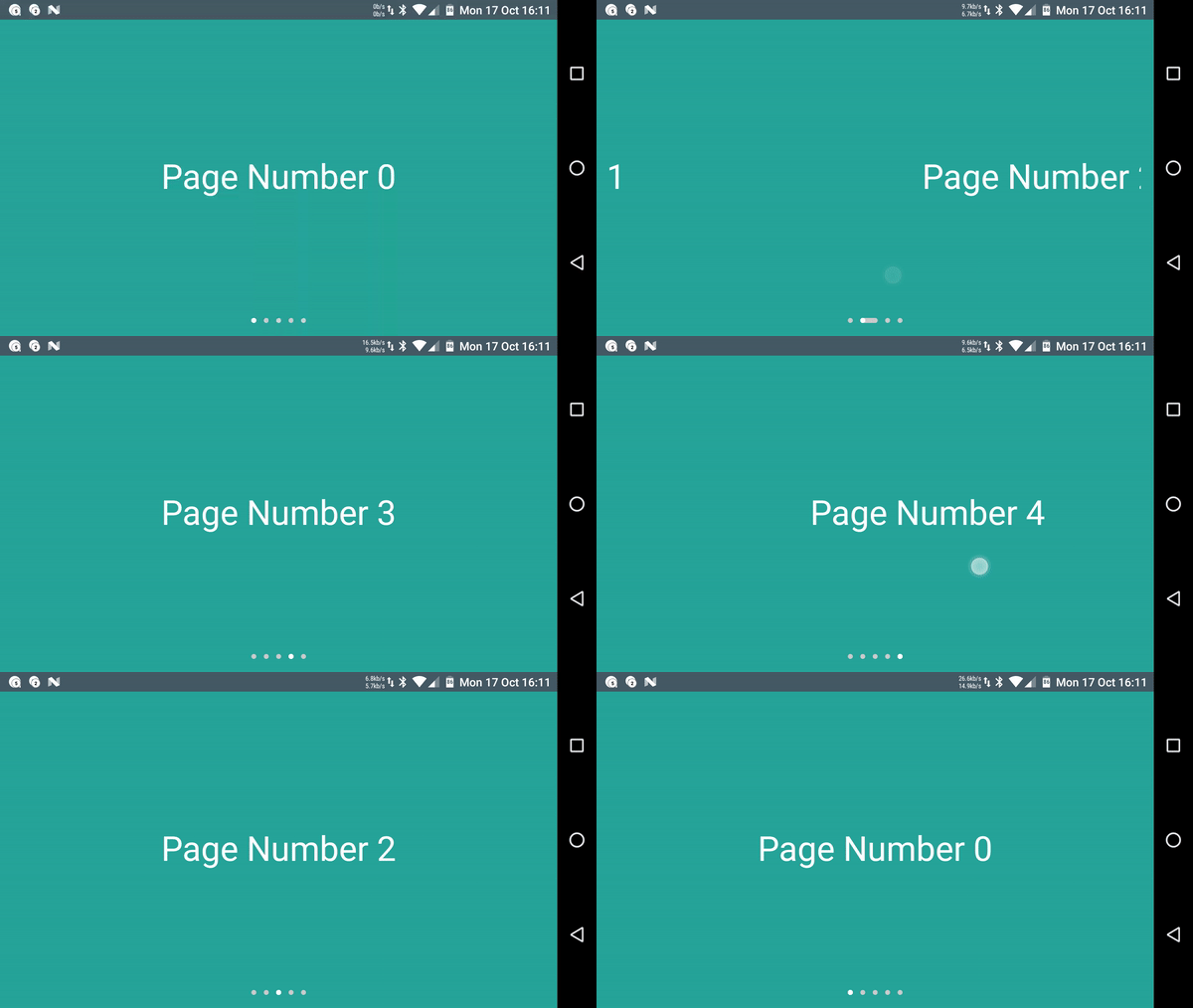
Material ViewPagerIndicator capture

As you can see, each dot represents a page, where the white dot is the current page and the gray dots are the other pages. When we change pages, the white selected dot page moves along a little path to the new current page.

Anyway, I wanted to use something like this in another app I was making, but alas, there isn’t an official version available to the developer public. I found that Nick Butcher, a developer at Google, has a version of his own included in a Material Design sample app, which as of this writing is pretty much as close to official as it gets. Sure, I could borrow that class, but… could I make my own version?

There is a first obvious question whenever you’re considering doing something like this.

Why reinvent the wheel?

Today’s Answer: Because we want to know how the wheel works, of course.

Breaking down the animation

The first thing I had to do was figure out how the animation works. The natural first attempt relied on what I could observe with my own eyes, but eventually I found some other tools that helped me comprehend the animation in greater detail.

Tool #1: Eyeballs

Let’s take a look at what we have here. Here’s the first official example I found from the Google Opinion Rewards app (as of the time of the library’s creation, this was actually the only Google Android app on my phone that was using the indicator, despite its appearance elsewhere; others are using a version that does not animate).

Material ViewPagerIndicator zoomed

Perhaps you’ll agree with me that from our high-level human standpoint, it appears pretty simple. You can already catch a lot more detail than I originally gleaned from blowing up the image, but here’s what I figured out from staring at that the tiny version on my phone for embarassingly long:

  1. The dot for the current page makes a path to the dot for the new page.
  2. The white current page dot slides along the path to its new location.
  3. The path that was created shrinks back under the white current page dot.

Is that all we need to do to replicate this effect? How can we break this down in more detail?

Tool #2: .GIF frame splitting

My first attempt at breaking this down involved sticking an image I found on GitHub through a GIF splitter and looking at each frame in the GIF. I discovered that DavidPacioianu on GitHub extracted the indicator from Nick Butcher’s sample app (the one I mentioned at the beginning) and set it up as a separate library. In the repo README, he helpfully included a GIF of the isolated animation.

(Truthfully, this journey almost ended upon me finding his version, but sometimes you really just need to satisfy your own curiousity and satsify the itch to build something.)

I grabbed the image and ran it through ezgif.com’s GIF splitter. This method, though crude, helped me update my animation analysis with a lot of the details that were too fast for me to catch with just the naked eye:
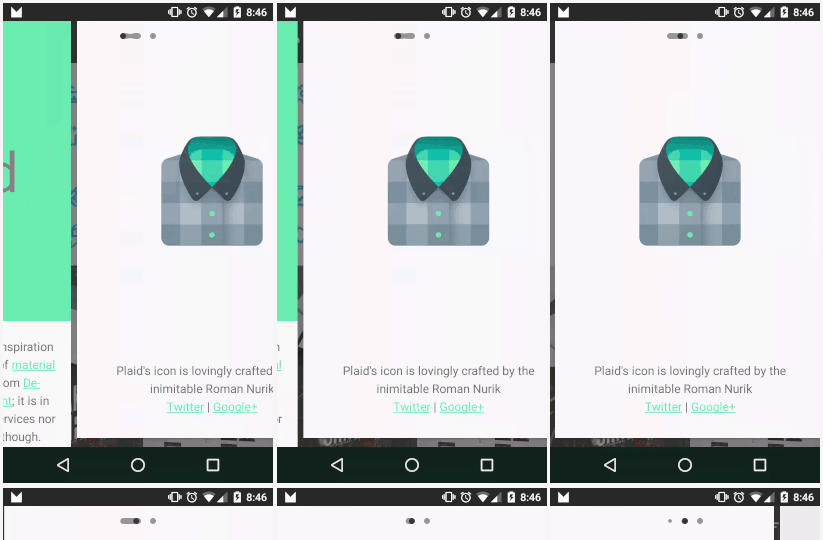
InkPageIndicator GIF breakdown

  1. Both the dot for the current page and the dot for the new page start stretching out toward each other.
  2. Those two dots form a path.
  3. The current page dot slides across the path to its new location.
  4. The path retreats from the last page dot to the new page dot, taking the old dot for that page with it.
  5. While the path is retreating, a new dot for the last selected page grows out of where the last dot was taken.

Wow! It turns out there was a lot more going on than I had initially thought. After deciding that no, I wouldn’t let the existence of this alternative library deter my learning experience, I now had enough information to get started.

Tool #3: “Animator scale” Developer Setting

While using the GIF splitter helped me get started, I found out while building the library that there’s an even better way to go about this. Specifically, the largest benefit of the GIF breakdown approach is also a huge downside: the breakdown is made up of static images, so it’s very difficult to find out how long each animation takes. (It’s probably possible to calculate if you know the frame rate of the source image, but that’s a bit of a pain.)

Anyhow, it turns out that you can actually slow down animations globally across your Android device using the Animator scale option in Android’s Developer Settings:
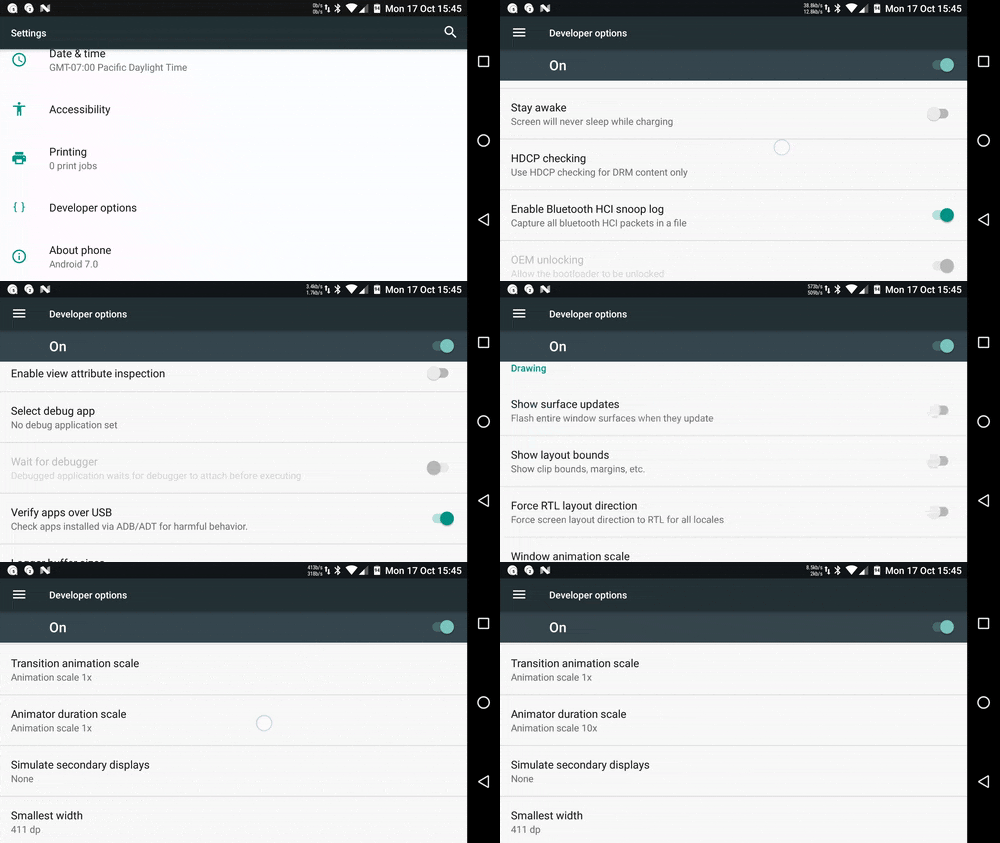
Animator scale developer setting

For the uninitiated, Animator is a core class from the animation framework introduced in Android Honeycomb. It represents an animation “which can be started, ended, and have [listeners].” So, by altering the Animator scale setting, any animation across the entire system that uses Animators to operate will have their natural duration scaled accordingly.

Using this tool, we can now really pick apart the animation we’re seeing. At an Animator scale of 10x, i.e., animations take ten times longer, we can see all the details in a working example of the official widget (source: Google Opinion Rewards app). I’ve used Android Nougat’s multi-window feature to show this side by side with the version I made. Each animation is shown separately because Nougat doesn’t like simultaneous swipes on both apps:
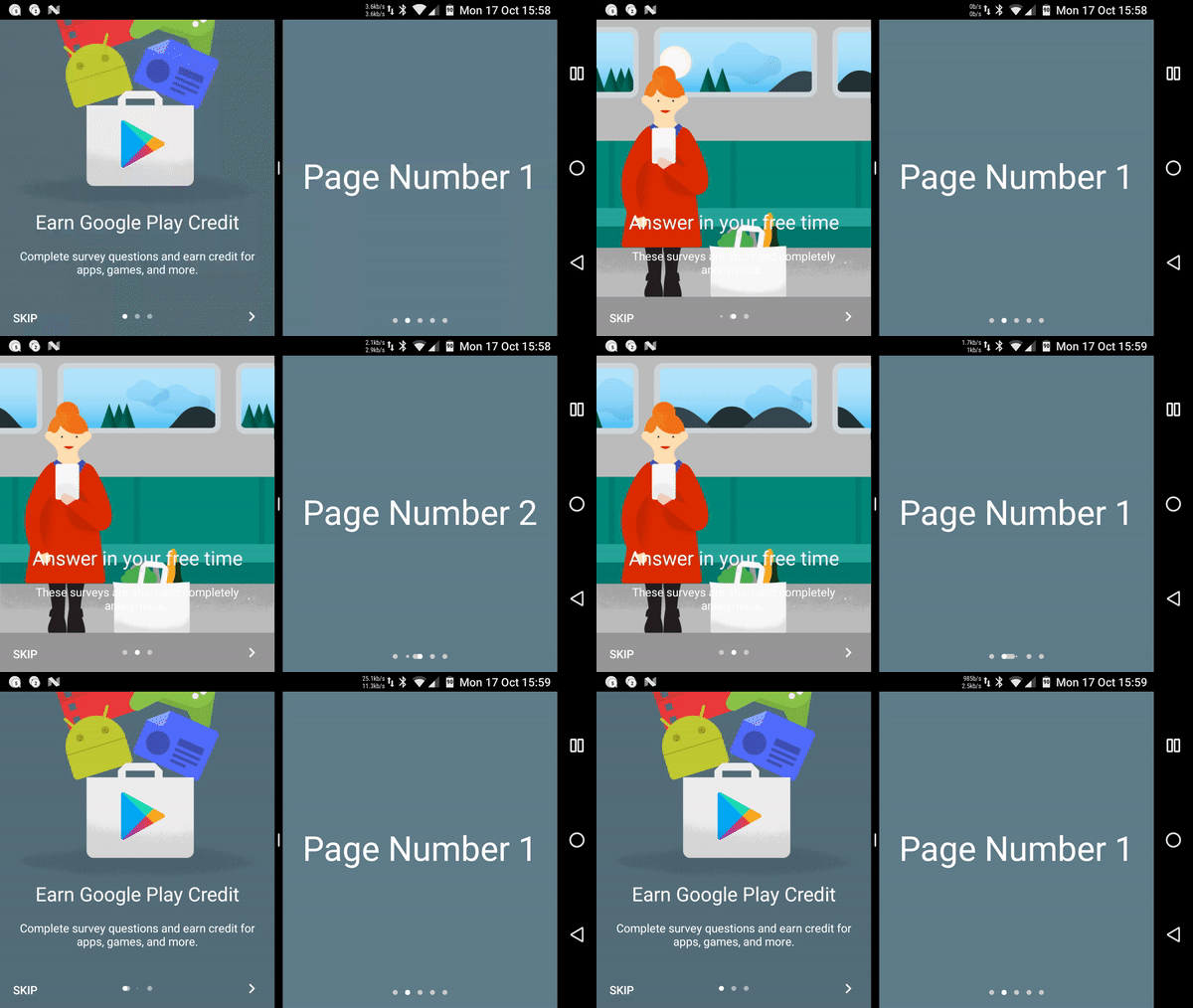
Indicators 10x Side-by-side

Cool, right? This breakdown ended up being really helpful when I was trying to match animation timing for the library (it’s pretty close, and it will get even better as the library develops!), which we will get into in a future post.

Thanks for reading! See you next time.

8 minute read

Update 2016-10-05

This article has been updated to reflect some changes to tooling that fixes some of the problems mentioned below.

Living Life on the “Edge”

I’m currently building an Android app to remind me to take healthy breaks from starting at computer screens. For extra funsies, it’s built on the cutting edge of current fashionable Android technologies. Of particular note today, we have:

  1. MVP architecture using Dagger 2 for dependency injection, and
  2. Kotlin, the JVM language by JetBrains.

I’ve run into a few roadblocks along the way, and since we’re using shiny new tools, there’s fewer than usual online solutions addressing them. Hopefully these tips might help someone out there who’s doing something similar.

At the time of writing, I’m currently using Dagger v2.2 with Kotlin v1.0.2. I have just discovered that Dagger 2.4 is already stable and that Dagger 2.5 was commited to master a few hours ago, so I’ll update this again when I’ve looked into whether using one of these instead of v2.2 addresses some of the issues that follow.

Update 2016-10-05: I have released the app that inspired this article. You can check it out on GitHub as a reference when setting up your own project.

kapt, the Kotlin annotations processor

Most of the tutorials on (Java) Dagger integrations rely on Hugo Visser’s Android Studio Annotations Processor. This is used with Dagger as follows:

apply plugin: 'com.neenbedankt.android-apt'
 
buildscript {
    repositories {
        jcenter()
    }
    dependencies {
        classpath 'com.neenbedankt.gradle.plugins:android-apt:1.4'
    }
}
 
android {
    ...
}
 
dependencies {
    apt "com.google.dagger:dagger-compiler:$rootProject.ext.daggerVersion"
    compile "com.google.dagger:dagger:$rootProject.ext.daggerVersion"
    provided 'javax.annotation:jsr250-api:1.0' 
    
    ...
}

However, when using these annotations in Kotlin files we should be using the built-in Kotlin annotation processor instead (source: Stack Overflow):

// apply plugin: 'com.neenbedankt.android-apt' - no longer necessary
 
buildscript {
    repositories {
        jcenter()
    }
    dependencies {
        // classpath 'com.neenbedankt.gradle.plugins:android-apt:1.4' - no longer necessary
    }
}
 
android {
    ...
}

kapt {
	generateStubs = true
}
 
dependencies {
    // apt "com.google.dagger:dagger-compiler:$rootProject.ext.daggerVersion" - use kapt instead
    kapt "com.google.dagger:dagger-compiler:$rootProject.ext.daggerVersion"
    compile "com.google.dagger:dagger:$rootProject.ext.daggerVersion"
    provided 'javax.annotation:jsr250-api:1.0' 
    
    ...
}

Multiple JSR 250 Dependencies

That provided 'javax.annotation:jsr250-api:1.0' line might have stuck out to you.

Developers haven’t seemed to have agreed on a source for the JSR-250 Java annotations API used by the Dagger compiler. I’ve encountered at least three Gradle artifacts in various projects:

  1. javax.annotation:javax.annotation-api:1.2 - used in Mosby’s Dagger sample; in Facebook’s Fresco library
  2. org.glassfish:javax.annotation:10.0-b28 - used in Google’s MVP+Dagger example and damianpetla’s Kotlin+Dagger example
  3. javax.annotation:jsr250-api:1.0 - per codepath’s Dagger 2 article

So, what gives? A rudimentary Google search suggests that all of these were implemented as part of Sun/Oracle’s GlassFish project. I didn’t find what I was looking for in jCenter, so I found what I believe are the original uploads on good maven central. This is what I found:

  1. javax.annotation:javax.annotation-api:1.2
  • Description: “Common Annotations for the JavaTM Platform API”
  • URL (from metadata): https://jcp.org/en/jsr/detail?id=250
  • Last updated: 2013
  • Main .jar filesize: 42311 bytes
  • Includes developer in metadata: Rajiv Mordani, the JSR-250 lead at Sun (and now at Oracle).
  1. org.glassfish:javax.annotation:10.0-b28
  • Description: “Common Annotations for the JavaTM Platform API version ${spec.version} Repackaged as OSGi bundle in GlassFish”
  • URL (from metadata): None
  • Last updated: 2011
  • Main .jar filesize: 20542 bytes
  • Includes developer in metadata: No
  • Notes:
    • Manifest includes in header: “Copyright 1997-2008 Sun Microsystems, Inc.”
    • Lists #3 below as an optional dependency!
    • OSGi (official site; Wikipedia) is a standard for packaging Java components.
  1. javax.annotation:jsr250-api:1.0

According to the community page (which is the same URL provided by #1), the original release was in 2006, with maintenance releases in 2009 and 2013 (n.b.: another maintenance release is scheduled for next month, Jul 2016!). So it looks like #1, javax.annotation:javax.annotation-api:1.2 implements the latest version of this spec, whereas #3 implemented the first stable version almost ten years ago.

For what it’s worth, I gave all of them a whirl with Dagger and didn’t run into any issues. This is a good enough comparison for my purposes short of peeking inside the JARs and comparing them. Since #3 is the smallest and seems to contain the bare minimum necessary for Dagger, I’ve taken to using that package.

kotlin-android-extensions

JetBrains’ Kotlin Android Extensions plugin provides some great features on top of the standard tooling. For those who haven’t used it, it can create “synthetic properties” properties from your XML layout files so that you don’t need to make findViewById() calls and cast them to assign your instance variables. These calls are the bane of Android developers everywhere, many of whom use ButterKnife to fight back:

Traditionally in Java:

public class MyActivity extends Activity {

    private TextView mTextView;

    @Override
    public void onCreate(Bundle savedInstanceState) {
        super.onCreate(savedInstanceState);
        setContentView(R.layout.activity_main);
        mTextView = (TextView) findViewById(R.id.textview);

        // Now you can use mTextView:
        mTextView.setText("Hello, reader!");
    }
}

With ButterKnife (Still in Java):

public class MyActivity extends Activity {
    @BindView(R.id.textview) TextView textView;

    @Override
    public void onCreate(Bundle savedInstanceState) {
    	super.onCreate(savedInstanceState);
        setContentView(R.layout.activity_main);
        ButterKnife.bind(this);

        // Now you can use textView:
        textView.setText("Hello, reader!");
    }
}

With kotlin-android-extensions:

import kotlinx.android.synthetic.main.activity_main.* // Import all views in R.layout.activity_main

class MyActivity: Activity() {
	override fun onCreate(savedInstanceState: Bundle) {
		super.onCreate(savedInstanceState)
        setContentView(R.layout.activity_main)

        // textview is already available
        textview.text = "Hello, reader!"
	}
}

Dagger 2.2 Compatibility

Update 2016-10-05: This seemed to be a problem with the Kotlin plugin rather than with Dagger itself. Code minify works fine with Kotlin v1.0.3 and the current version 1.0.4.

Nice, right? However, I couldn’t for the life of me make my view classes work with both Dagger and Kotlin. I started out with an Activity that used Dagger for injecting its presenter. Then, I tried factoring out those pesky findViewById() calls and using the synthetic properties directly, only to run into various build errors. Either the compiler couldn’t import the synthetic layout “Unresolved reference kotlinx,” or component classes generated by Dagger “references unknown class X,” where X is the component interface that Dagger used to generate it. Okay.

This was oft accompanied by the sad error message:

:app:transformClassesWithNewClassShrinkerForDebug FAILED

Error:Execution failed for task ‘:app:transformClassesWithNewClassShrinkerForDebug’.

Warnings found during shrinking, please use -dontwarn or -ignorewarnings to suppress them.

The fix:

buildTypes {
	yourBuildType {
		// ...
		minifyEnabled false
		// ...
	}
}

Voila. No more errors. Hope that gets fixed soon, though.

Misleading solutions

While trying to fix the problem above, Googling pointed me at fairly recent Stack Overflow answers like this one that suggested the following:

  1. Move the buildscript kotlin classpath dependencies to the app module’s build.gradle file
  2. apply plugin: 'kotlin-android-extensions' and add classpath "org.jetbrains.kotlin:kotlin-android-extensions:$kotlin_version" in the gradle file

In fact, the official docs do say you need to apply the kotlin-android-extensions plugin. We should do this. Better safe than sorry, right?

However, I think it’s worth noting that these tips did not fix the conflicts I ran into above with my current setup (Android Studio 2.2-preview3/Dagger 2.2/Kotlin 1.0.2), and that after turning minify off the standard setup (i.e. buildscript in project root build.gradle; no explicit mention of kotlin-android-extensions) everything worked perfectly. Again, this may vary based on what tool versions you are using.

Update 2016-06-15: Using Dagger 2.4 did not solve this problem.

Update 2016-10-05: In Kotlin plugin v1.0.3 and up, the automatic project setup works without modification.

inject() requires the exact class you’re injecting into

Lastly, my “d’oh!” moment.

One of my Activities implemented an interface for interaction with its presenter:

TimerActivity.kt:

class TimerActivity : AppCompatActivity(), TimerContract.TimerView {

	@Inject
	override lateinit var presenter: TimerContract.UserActionsListener
	...
}

TimerPresenter.kt:

class TimerPresenter
	@Inject constructor(override var view: TimerContract.TimerView)
	: TimerContract.UserActionsListener {
	...
}

I wanted to inject the presenter in TimerActivity using Dagger, so I implemented a module and component for it.

TimerComponent.kt:

import dagger.Component

@Component(
        modules = arrayOf(TimerModule::class)
)
interface TimerComponent {

    fun inject(timerView: TimerContract.TimerView)
}

TimerActivity.kt:

class TimerActivity : AppCompatActivity(), TimerContract.TimerView {

	@Inject
	override lateinit var presenter: TimerContract.UserActionsListener
	...

	override fun onCreate(savedInstanceState: Bundle) {
		super.onCreate(savedInstanceState)
		// Inject away!
		DaggerTimerComponent.builder()
			.timerModule(TimerModule(this))
			.build()
			.inject(this)
	}
}

It type-checks and everything! But presenter still wasn’t getting injected. Did you see the problem?

Despite inject() type checking for a TimerActivity that conforms to the TimerContract.TimerView interface, it turns out that the method much match the type of the injecting object exactly.

TimerComponent.kt:

import dagger.Component

@Component(
        modules = arrayOf(TimerModule::class)
)
interface TimerComponent {

//  fun inject(timerView: TimerContract.TimerView) Nope!
    fun inject(timerActivity: TimerActivity)	// Yup!
}

Total noob move, I’m sure, but hey, now I know.

Helpful Resources

I probably wouldn’t have figured out how to make everything work without the help of the following resources — props to the makers:

Update 2016-10-05: I now have my own working Kotlin/Dagger app on GitHub.

Thanks for reading, and catch you next time!